Choose Your Language: International US DE ES FR
Hello Guest Login Here or

BGInfo 4.16

Author's Description

BGInfo - Automatically generates desktop backgrounds

Automatically generates desktop backgrounds that include important information about the system including IP addresses...

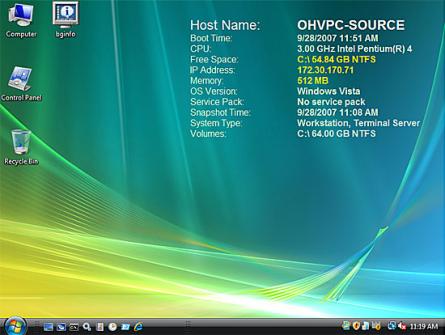
BGInfo automatically generates desktop backgrounds that include important information about the system including IP addresses, computer name, network adapters, and more.

How many times have you walked up to a system in your office and needed to click through several diagnostic windows to remind yourself of important aspects of its configuration, such as its name, IP address, or operating system version?

If you manage multiple computers you probably need BGInfo. It automatically displays relevant information about a Windows computer on the desktop's background, such as the computer name, IP address, service pack version, and more.

You can edit any field as well as the font and background colors, and can place it in your startup folder so that it runs every boot, or even configure it to display as the background for the logon screen.

Because all BGInfo does is to simply write a new desktop bitmap and exit, you don't have to worry about it consuming your system resources or interfering with other programs.

By placing BGInfo in your Startup folder you can ensure that the system information being displayed is up to date each time you boot. Once you've settled on the information to be displayed use the command line option /timer:0 to update the display without showing the dialog box.

You can also use the Windows Scheduler to run BGInfo on a regular basis to ensure long-running systems are kept up to date.

If you create a BGInfo configuration file (using the File|Save Settings menu item) you can automatically import and use those settings on other systems by adding the /I or /iq command line option.

BGInfo features :

Appearance Buttons

- Fields: Selects what information appears on the desktop, and the order in which it is displayed. For networking fields (NIC, IP, MAC, etc.) a separate entry is created for each network card on the system. Use the Custom button to add special information you define yourself.
- Background: Selects the color and/or wallpaper to use for the background. If you select the Copy existing settings option then BGInfo will use whatever information is currently selected by the logged on user. This option allows end users to personalize their desktop while still displaying the BGInfo information.
- Position: Selects the location on the screen at which to place the text. If some items are very long (for example some network card names) you can use the Limit Lines to item to wrap them. The Compensate for Taskbar position checkbox adjusts the position of the text to ensure that it is not covered by the Taskbar. The Multiple Monitor Configuration button allows you to specify how multiple monitors attached to a single console should be handled.
- Desktops: Selects which desktops are updated when the configuration is applied. By default only the User Desktop wallpaper is changed. Enabling the Logon Desktop for Console users option specifies that the wallpaper should be displayed on the logon desktop that is presented before anyone has logged onto the system. On Windows 95/98/ME systems the same desktop is used for users and the login screen, so this option has no effect. Enabling the Logon Desktop for Terminal Services users option specifies that the wallpaper should be displayed on the Terminal Services login screen. This option is useful only on servers running Terminal Services.
- Preview: Displays the background as it will appear when applied to your system.

Configuration Menu Items

These are options that control how the bitmap is produced, where it is located and how to import/export settings.
- File | Open: Opens a BGInfo configuration file.
- File | Save As: Saves a copy of the current BGInfo configuration to a new file. Once created, you can have BGInfo use the file later by simply specifying it on the command line, or by using File|Open menu option.
- File|Reset Default Settings: Removes all configuration information and resets BGInfo to its default (install-time) state. Use this if you can't determine how to undo a change, or if BGInfo becomes confused about the current state of the bitmap.
- File|Database: Specifies a .XLS, .MDB or .TXT file or a connection string to an SQL database that BGInfo should use to store the information it generates. Use this to collect a history of one or more systems on your network. You must ensure that all systems that access the file have the same version of MDAC and JET database support installed. It is recommended you use at least MDAC 2.5 and JET 4.0. If specifying an XLS file the file must already exist.
If you prefer to have BGInfo update the database without modifying the user's wallpaper you can unselect all desktops in the Desktops dialog; BGInfo will still update the database.
- Bitmap|256 Colors: Limits the bitmap to 256 colors. This option produces a smaller bitmap.
- Bitmap|High Color/True Color: Creates a 16-bit or 24-bit color bitmap.
- Bitmap|Match Display: Creates a bitmap with color depth matching that of the display. Because the bitmap generated by BGInfo is not updated when a user changes the display's color depth you may see unexpected results (especially dithering of the text and background) with some combinations of bitmap and display depth.
- Bitmap|Location: Specifies the location to place the output bitmap file. On Terminal Services servers the bitmap should be placed in a location that is unique to each user.
- Edit|Insert Image: Allows you to insert a bitmap image into the output. Because BGInfo's configuration information is stored in the registry and Windows limits the size of registry values you may encounter errors when inserting larger images. On Windows 9x/Me systems the limit is 16K, while on NT/2000/XP systems the limit is 64K.

BGInfo 4.16 is licensed as Freeware for the Windows operating system / platform. BGInfo is provided as a free download for all software users (Freeware).

User Reviews (0)

No reviews yet, be the first to add a review and we'll give you some extra points.
Download Notice
BGInfo is periodically updated by FileCluster but you may encounter situations when the software informations are slightly out-of-date, the developer can modify this product without notifying us. Version [4.16] is currently the latest updated version of the software.

Any form of support or software problems will be addressd directly to its developers, Sysinternals. Please be aware that we do NOT provide BGInfo cracks, serial numbers, registration codes or any forms of pirated software downloads.
Related Software
CPUThrottle 1.1
CPUThrottle is a tool to utilize the CPU. The result is a throttle of the system
0 / 61
Cloudiff Monitor Agent 2.5.18.41
Real-time monitoring of the CPU, RAM, HDD and network traffic usage.
1 / 158
SharpSpec Portable 1.1.94.0
View your computer's specs.
0 / 51
PrimeCores 2010 3.1.0
n easy-to-use multi-threaded CPU benchmark
1 / 156
DiskMarkStream 0.4.9 Beta
Macro tool that you can use with CDM.
0 / 74
iStat Pro 4.92
Monitor widget: CPU, memory, network, bandwidth and drive.
5 / 313
Notebook Hardware Control 2.0 Pre-Release 06
helps you control the hardware components
10 / 1,412
HWMonitor 1.22.0
Hardware monitoring software
20 / 2,675
Disk Bench 2.6.2.0
Tests your hard drive speed
3 / 470
ClockGen 1.0.5.3
Set of overclocking software
2,057 / 186,780